

Get to the Utility window by going to Tools at the top of your program window, then select Utilities/Setup Assistant.
To uninstall a module:
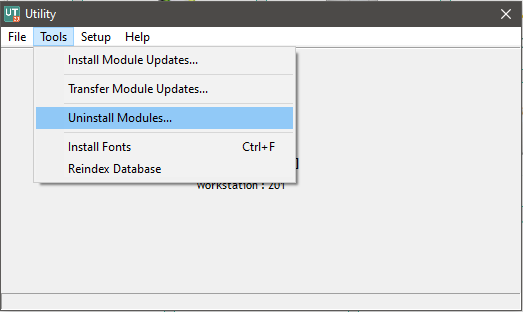
- In the Utility, click Tools, then Uninstall Modules...
- A window will appear listing the Federal modules, states, and bank(s) currently installed on your system. Select the package(s) you wish to uninstall.
- Click OK or press Enter. A message will tell you when the process is complete.
To reinstall a module, you have uninstalled:
- In the Utility window, click Tools, then Install Module Updates...
- Mailbox is the default directory selected. This is where the Federal module, state, and bank software is stored when uninstalled. Click OK on this window.
- On the next window, select the Federal module, state, or bank you wish to install. The item's check box must be selected to be installed.
- When the desired items have been selected, press Enter or click OK to begin.
- When the process is complete, you will see a window listing installed updates.
The Federal module, state, and/or bank updates are now installed. When you close the Utility and go back to UltimateTax, the Federal module, state, and/or bank software will be available.
This information applies to all years of the UltimateTax software.
Comments
Article is closed for comments.